Chrome Clean Cookies and Cache:
Please open Google Chrome.
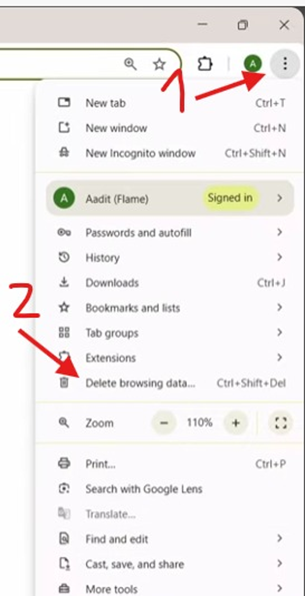
- Once its open, Now Click the three vertical dots (⋮) in the top-right corner,
- then click on "Delete browsing data".
3. Once you see this screen, where it says time range click on "All Time" as in the picture.
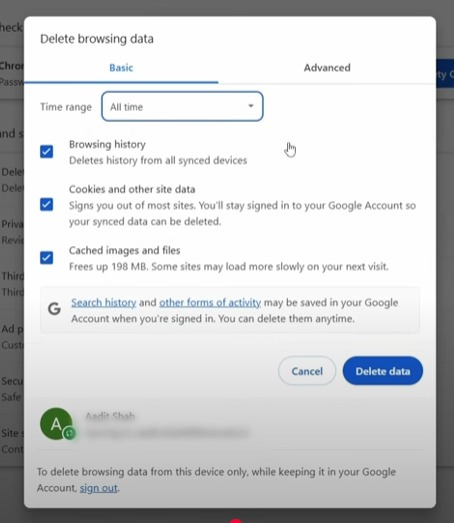
4. On the other boxes, make sure you just check on:
- “Browsing History” (Not Necessary, But Recommended)
- “Cookies and Other site data”
- also “Cache Images and Files”.
5. Once thee boxes are checked, you can click on "Delete data" button, and its done.
6. Now you can open up Moxie Link on the browser normally, login and it would be working fine and smoothly.
Was this article helpful?
That’s Great!
Thank you for your feedback
Sorry! We couldn't be helpful
Thank you for your feedback
Feedback sent
We appreciate your effort and will try to fix the article